
CHOOSE YOUR DEVICE
USA IPTV Hub on Fire TV Stick
Use the Nitro4K or TVURO app on a compatible Fire TV Stick. Confirm your exact model before installation.
Nitro4K TVURO

These APK instructions are for compatible Fire OS models, not Vega OS. If Downloader or the required installation option is missing, contact support with your exact model.
Open Downloader on your device
On your compatible Fire OS device, search the Amazon Appstore for Downloader by AFTVnews, install it and open it. Look for the orange Downloader icon shown here.

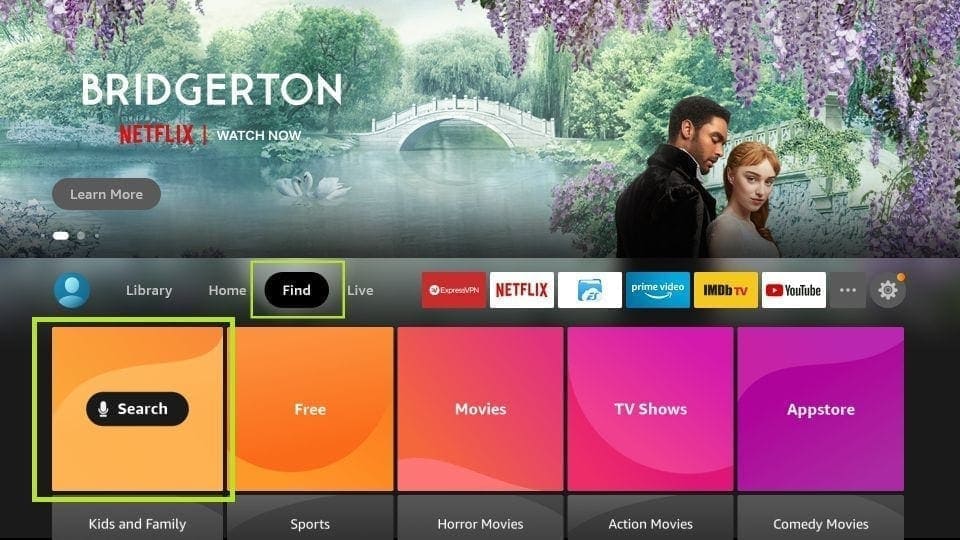
On this Fire OS version, open Find, then Search. Your home screen may differ. 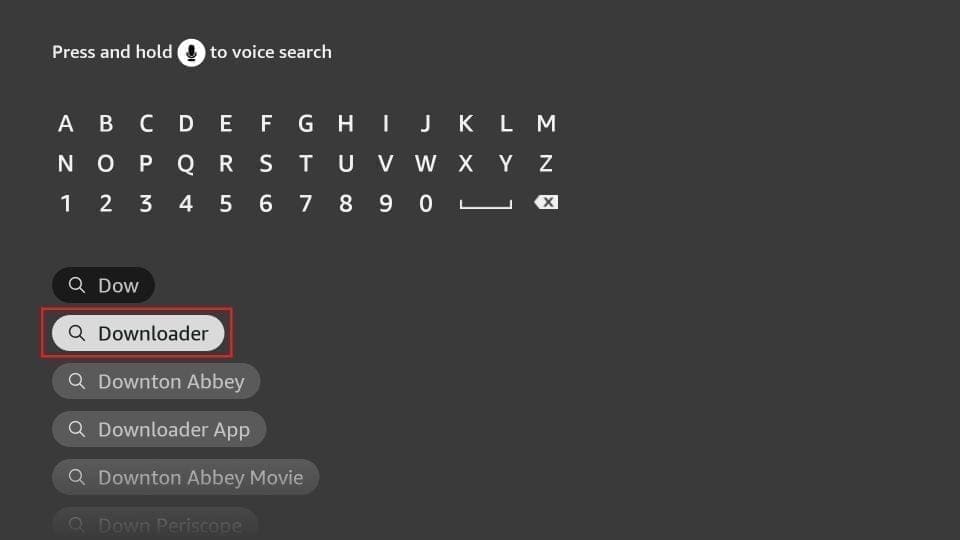
Search for Downloader and select the matching app, then install and open it. Allow installation from Downloader when prompted
On compatible Fire OS models, open Settings > My Fire TV > Developer Options > Install unknown apps. Allow Downloader only, then return to Downloader. You can turn this permission off after installation. If these options are missing, contact support with your model.
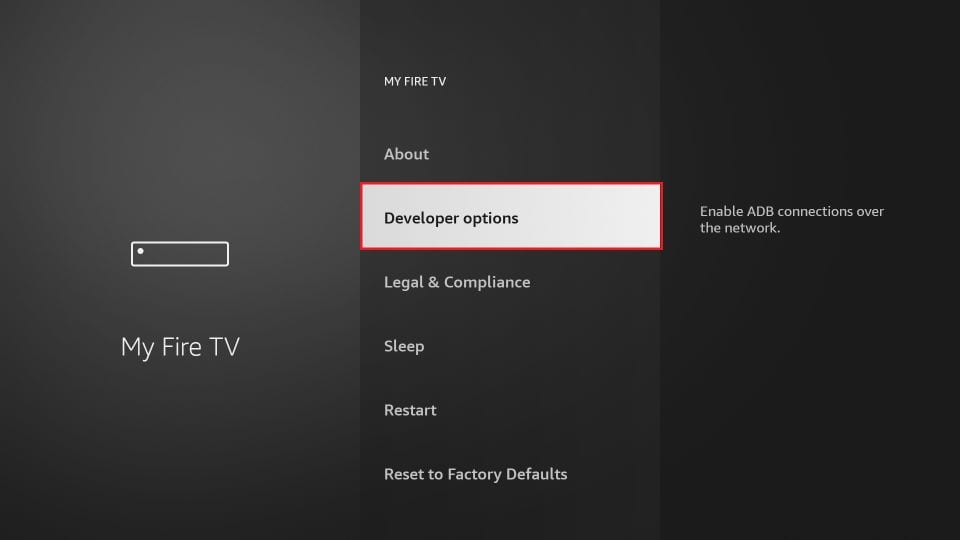
Open Developer options. Do not change unrelated settings. 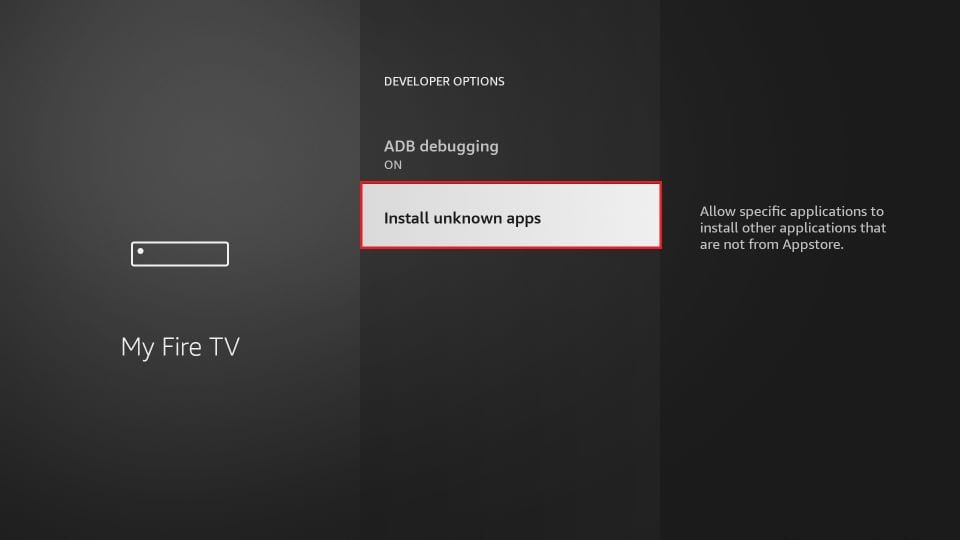
Choose Install unknown apps. ADB debugging is not required; do not turn it on for this guide. 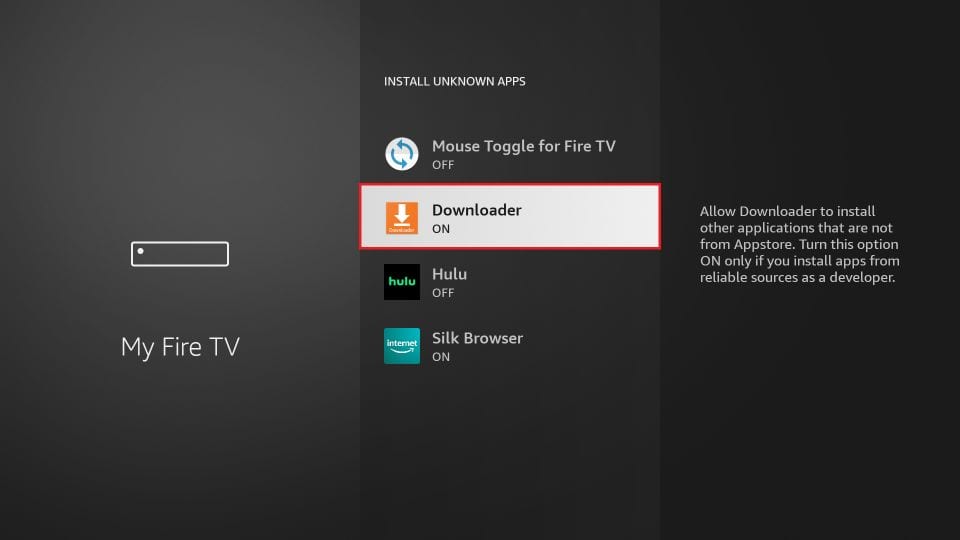
Enable Downloader only. Other apps shown in this example are not part of these instructions. Enter your app code and press Go
Select the address bar at the top of Downloader. Enter one of the codes below, then select Go to start the download for that app.
6174786
7503723
Use the top address bar labelled "Click here to enter a URL, Short Code, or Search Term...". The Downloader code starts the app download; it is not your subscription username or password.
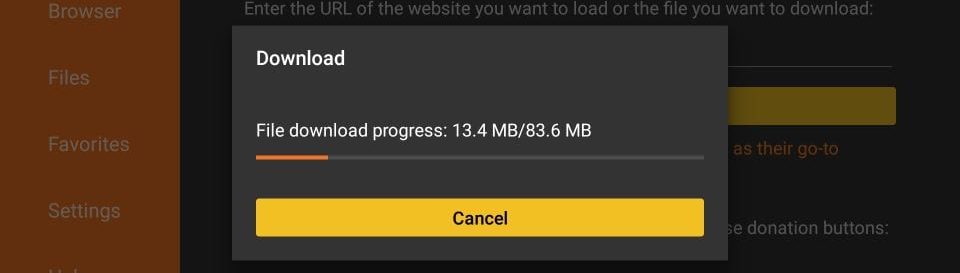
Wait for the download to finish. File size and download time will vary. Install your chosen app
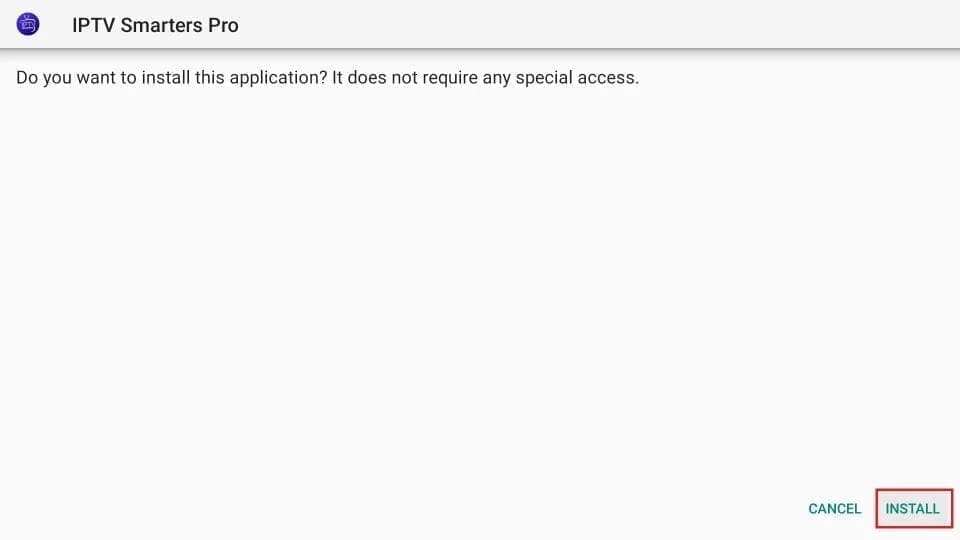
Wait for the download to finish. Check that the installer is for TVURO or Nitro4K, matching the code you entered, then select Install and Open.
If you see an unexpected app name, a payment request or a security warning, stop and contact support. Do not disable device security checks.

Installation-button example: this older screenshot shows Smarters. Your installer must show TVURO or Nitro4K, matching the code you entered. Select Install. Open the installed app
When installation finishes, select Open. If you selected Done, find TVURO or Nitro4K in your device app library and open it there.
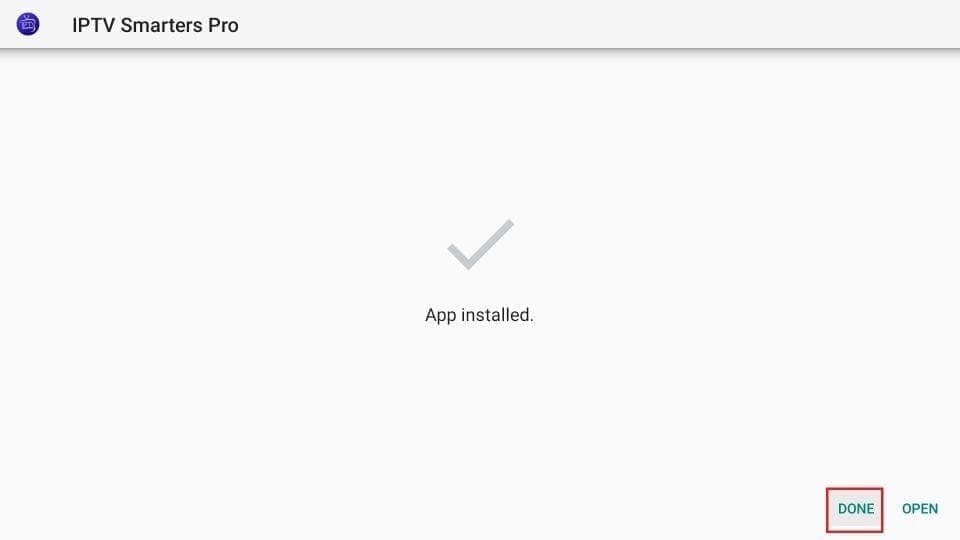
Choose Open at the bottom right. This is an older installer example; your installed app name must match TVURO or Nitro4K. Sign in with your subscription
Use the subscription login sent by our team, not your Amazon or Google account password. Follow the instructions for the app you installed.
TVURO
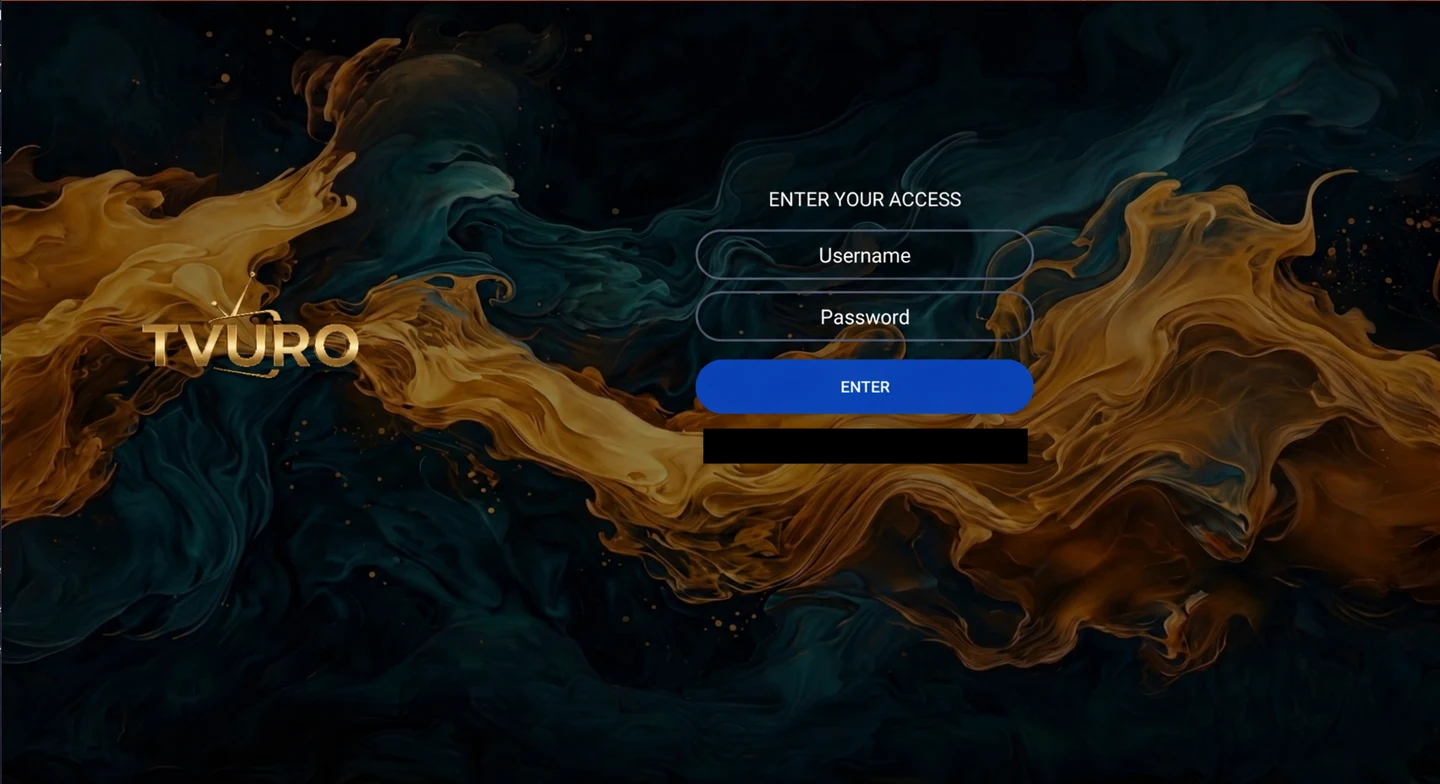
Open TVURO. On the ENTER YOUR ACCESS screen, type the Username and Password supplied with your subscription, then select ENTER.

Enter your own subscription username and password. Private details in this screenshot are hidden. Nitro4K
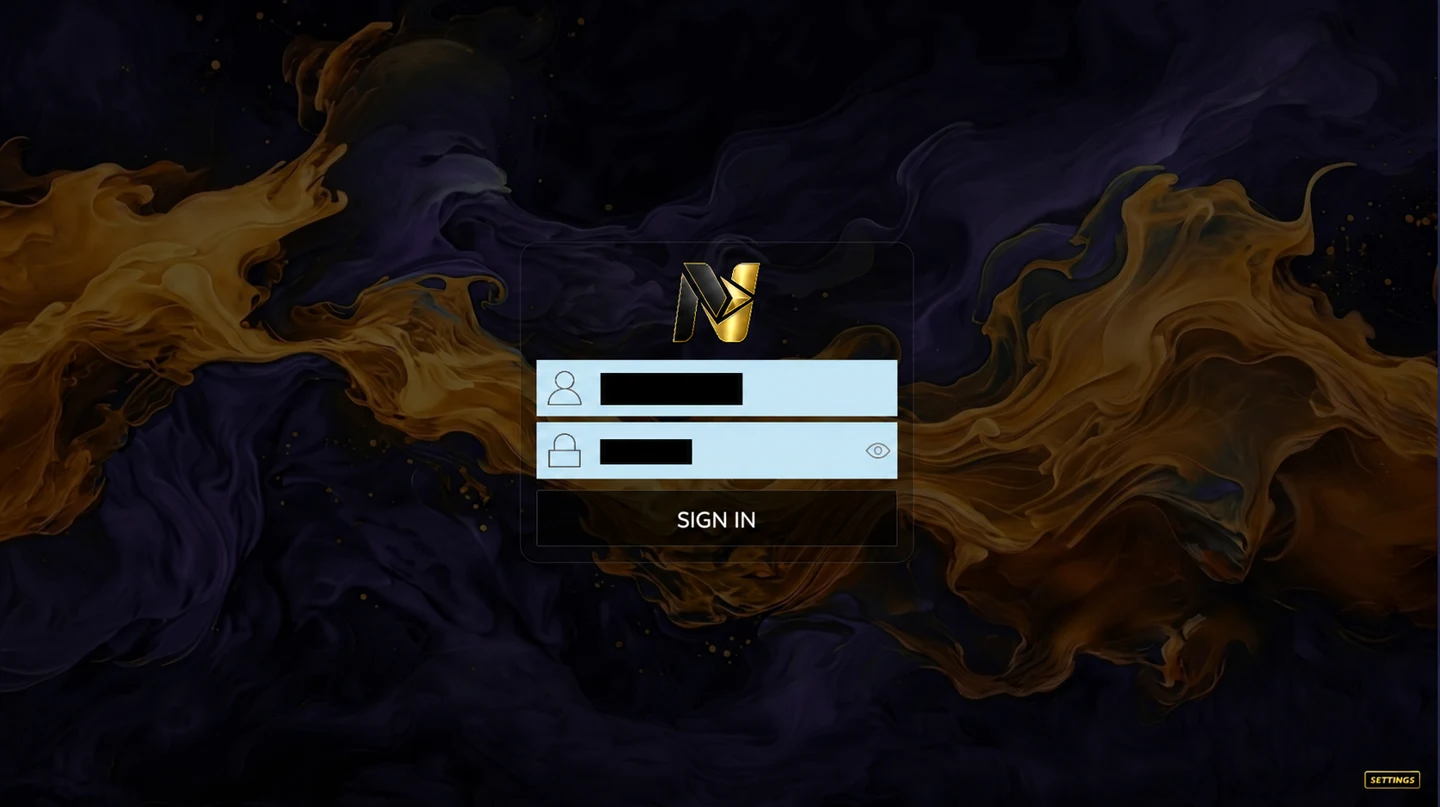
Open Nitro 4k. Enter the username and password supplied with your subscription, then select SIGN IN.

Enter your own subscription username and password. Private details in this screenshot are hidden. Screenshots show example app screens. Your library, dates and subscription expiry may differ. Keep your account details private.
If sign-in or playback fails, send support your device model, app name and error message. Do not include your password in screenshots.
Open your library and test playback
After signing in, wait for your library to load. Choose the category you want to watch.
TVURO
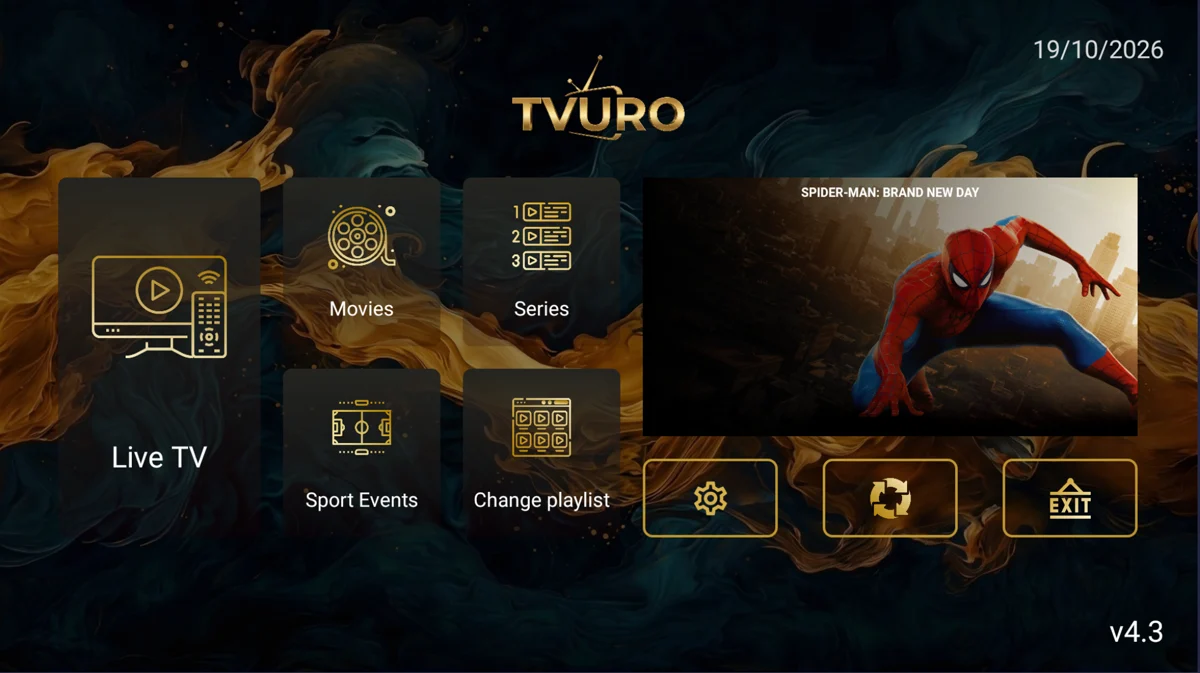
When the home screen loads, choose Live TV, Movies, Series or Sport Events.

Example home screen. Library contents, dates and subscription expiry vary. Nitro4K
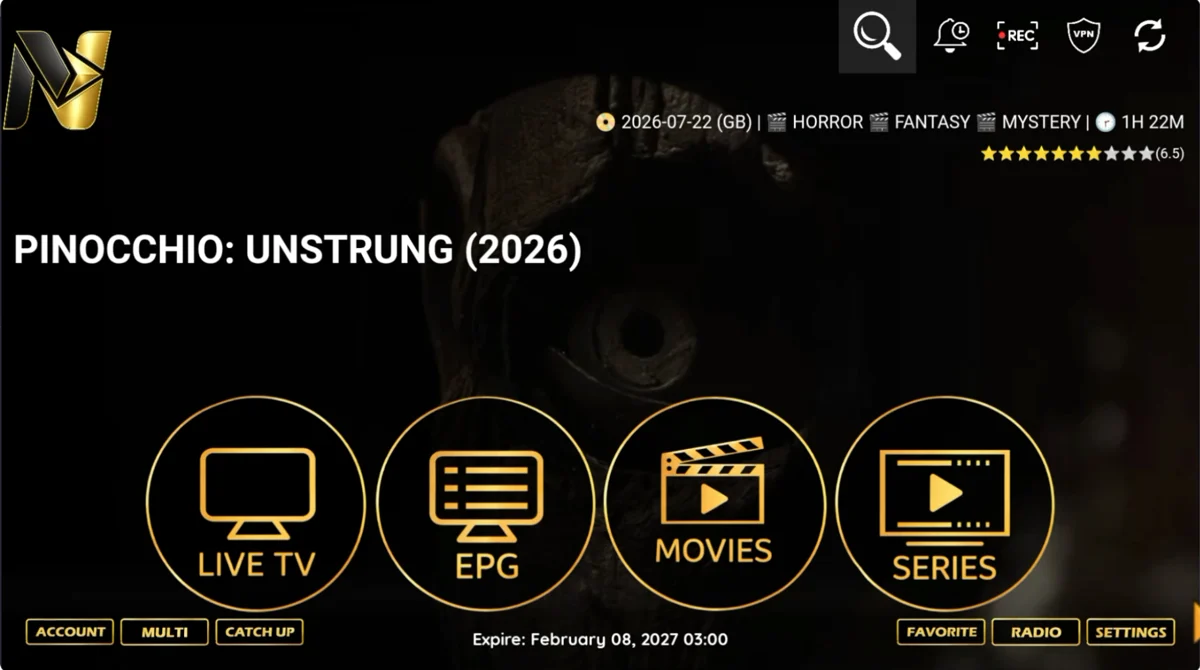
When the home screen loads, choose LIVE TV, EPG, MOVIES or SERIES.
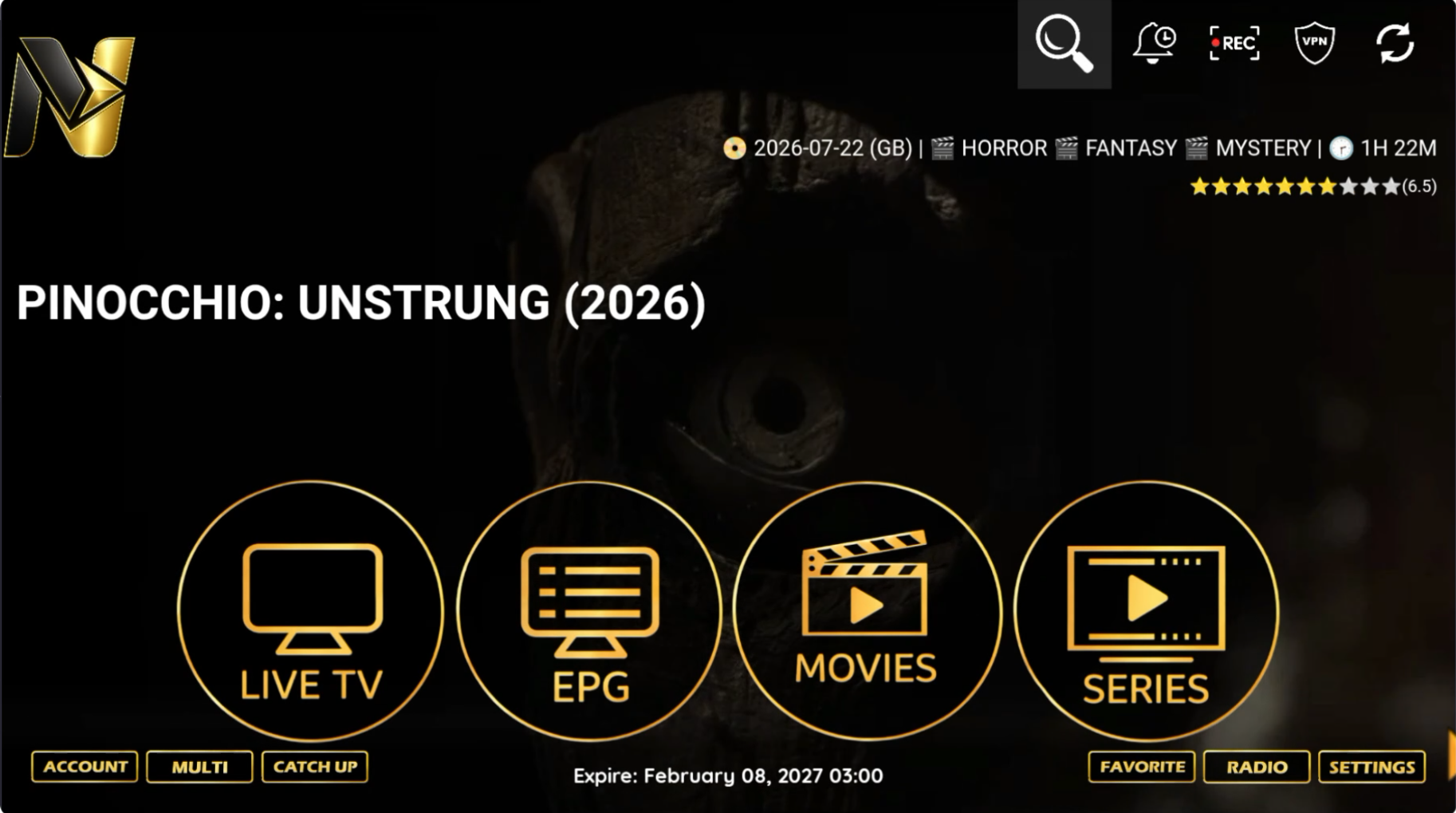
Example home screen. Library contents, dates and subscription expiry vary.




USA IPTV Hub on Android Box
Nitro4K and TVURO are available for compatible Android boxes. Tell support whether your device runs Android TV, Google TV or standard Android.
Nitro4K TVURO

These instructions are for compatible Android boxes. They are not installation instructions for Samsung Tizen, LG webOS, iPhone or iPad.
Open Downloader on your device
On your Android box, search its Google Play Store for Downloader by AFTVnews, install it and open it. If it is not available on your model, contact support for the correct installation method.
Enter your app code and press Go
Select the address bar at the top of Downloader. Enter one of the codes below, then select Go to start the download for that app.
61747867503723Use the top address bar labelled "Click here to enter a URL, Short Code, or Search Term...". The Downloader code starts the app download; it is not your subscription username or password.
Wait for the download to finish. File size and download time will vary. Install your chosen app
Wait for the download to finish. Check that the installer is for TVURO or Nitro4K, matching the code you entered, then select Install and Open.
If prompted, open the Android settings for Install unknown apps and allow installation from Downloader only. The location of this setting varies by Android box. Return to Downloader and retry the installation. You can switch this permission off again afterwards.
If you see an unexpected app name, a payment request or a security warning, stop and contact support. Do not disable device security checks.
Installation-button example: this older screenshot shows Smarters. Your installer must show TVURO or Nitro4K, matching the code you entered. Select Install. Open the installed app
When installation finishes, select Open. If you selected Done, find TVURO or Nitro4K in your device app library and open it there.
Choose Open at the bottom right. This is an older installer example; your installed app name must match TVURO or Nitro4K. Sign in with your subscription
Use the subscription login sent by our team, not your Amazon or Google account password. Follow the instructions for the app you installed.
TVURO
Open TVURO. On the ENTER YOUR ACCESS screen, type the Username and Password supplied with your subscription, then select ENTER.
Enter your own subscription username and password. Private details in this screenshot are hidden. Nitro4K
Open Nitro 4k. Enter the username and password supplied with your subscription, then select SIGN IN.
Enter your own subscription username and password. Private details in this screenshot are hidden. Screenshots show example app screens. Your library, dates and subscription expiry may differ. Keep your account details private.
If sign-in or playback fails, send support your device model, app name and error message. Do not include your password in screenshots.
Open your library and test playback
After signing in, wait for your library to load. Choose the category you want to watch.
TVURO
When the home screen loads, choose Live TV, Movies, Series or Sport Events.
Example home screen. Library contents, dates and subscription expiry vary. Nitro4K
When the home screen loads, choose LIVE TV, EPG, MOVIES or SERIES.
Example home screen. Library contents, dates and subscription expiry vary.
USA IPTV Hub on iPhone or iPad
Choose remote setup with ibo Pro Player, or enter your subscription details in a compatible player yourself. Use an App Store app for your Apple device, not the Nitro4K or TVURO Android installation file.
Smarters Player Lite: sign in with your subscription
The Smarters login screenshots below show the Xtream-compatible interface. If your version shows Add Playlist with M3U or JSON instead, ask our team for the matching playlist format; do not enter a server address into the wrong field.
The screenshots below show Smarters Player Lite on iPad. The same account fields are used on iPhone; screen layout can vary by version.
Install Smarters Player Lite
Download Smarters Player Lite on the App Store. Check the publisher is WHMCS SMARTERS, then install and open the app.

Match the app name and developer. On your iPhone or iPad, select Get or the download icon, then Open. Open the login screen
Open the account or add-user screen. If a choice of connection methods appears, select Xtream Codes API. Continue to the form with Any Name, Username, Password and URL.

Fill in this form using the subscription details supplied by our team. No real credentials are shown. Fill in your subscription details
Any Name: enter USA IPTV Hub.
Username: enter the username we sent you.
Password: enter the subscription password.
URL: enter the complete server address we supplied, including its prefix and port when present.Check capital letters and remove accidental spaces. Do not use your Apple Account password.
Fill the four highlighted fields with your USA IPTV Hub details, not the example account or your Apple password. Select Add User
Tap ADD USER and let the app load your library. If sign-in fails, check the three supplied login details and contact support with the error message. Do not send a screenshot containing your password.
After checking your login details, select ADD USER. Open Live TV, Movies or Series
Choose LIVE, then a category and channel. Use MOVIES or SERIES for those libraries. Select the playback window or fullscreen control to enlarge the picture.

Example app dashboard. Dates, account name and expiry shown here do not describe your subscription. Load the programme guide
If your account includes guide data, select UPDATE EPG and wait for it to load. Guide availability depends on the channel. You do not need to invent an EPG URL.
Select UPDATE EPG after the library loads, when guide data is included.


Already using Smarters Pro or another Xtream-compatible player? The server URL, username and password come from our team; button names may differ. Download Smarters Pro on the App Store.
ibo Pro Player: let us set it up for you
Install the correct app
Install ibo Pro Player by IRBOETECH CO. LTD, then open it. Download ibo Pro Player on the App Store. Check compatibility for your Apple device before installing; availability depends on your region and device.
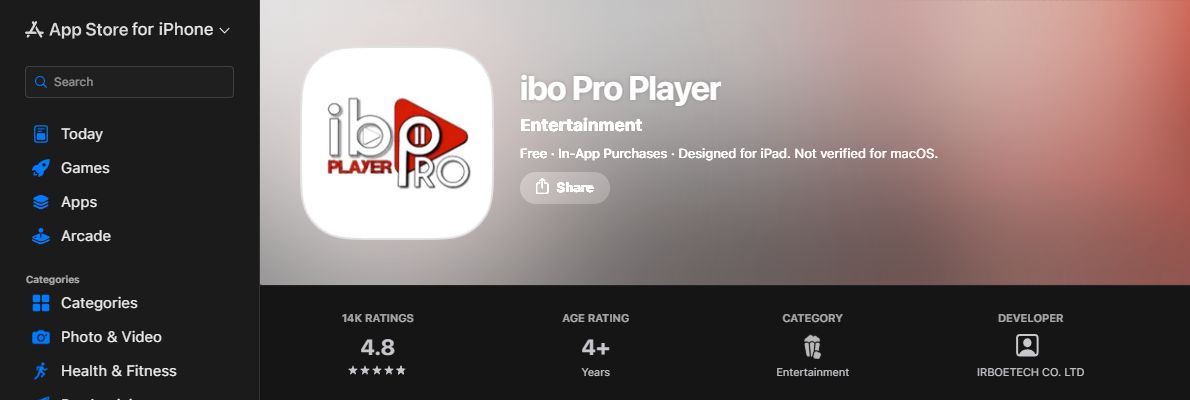
Match ibo Pro Player and IRBOETECH CO. LTD in the App Store. Select Get or the download icon, then Open. Find the app's MAC address and device key
Open the app's Settings and look for Mac Address and Device Key at the bottom of the screen below. If your version displays them on its welcome or account screen instead, use those details. These are the identifiers inside the player, not the Wi-Fi address in your iPhone settings.
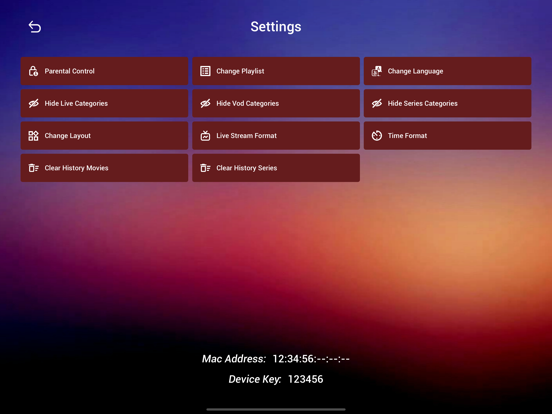
Send the values displayed in your own app. The MAC address and key in this publisher screenshot are examples, not your login details. Send the details privately to our team
Send the app name, your device type, and the displayed MAC address and device key through Contact support or WhatsApp support. A screenshot of that app screen is fine. We use these details to configure your playlist remotely. Do not post them publicly or send your Apple Account password, verification code or device passcode.
Send the two identifiers displayed on YOUR device privately to support. Do not copy the sample values shown. Reload and start watching
Wait for our confirmation, then reload the playlist or close and reopen the app. Open Live TV, Movies or Series and test playback. If the playlist is still missing, send support the error message and app version.
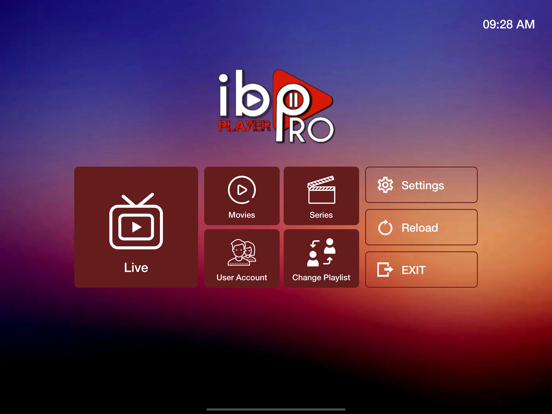
After our team confirms setup, select Reload. Then open Live, Movies or Series.


Using TiviMate? The official TiviMate player is intended for Android TV devices, not iPhone or iPad. Use a compatible Apple player here. The Nitro4K and TVURO app guides are in the Fire TV Stick and Android Box tabs.
Third-party players are independent apps and do not include your USA IPTV Hub subscription. Player activation or premium features may cost extra. Check the App Store listing and confirm compatibility with us before purchasing.
Contact supportUSA IPTV Hub on Smart TV
Install a compatible TV player, then let our team load your subscription remotely. App availability depends on the TV model and region.
Samsung and LG TVs cannot install our Android APKs directly. If no suitable player appears in your TV store, contact us about a compatible Fire TV Stick or Android box.
IBO Player: setup with our team
Choose this route for remote setup. Player activation fees, if any, are separate from your subscription.
Install the player on your TV
Samsung: Home > Apps > Search. LG: Home > Apps / LG Content Store > Search. Find the IBO player recommended by our team, check its publisher, then Install and Open. Availability varies by model and country.
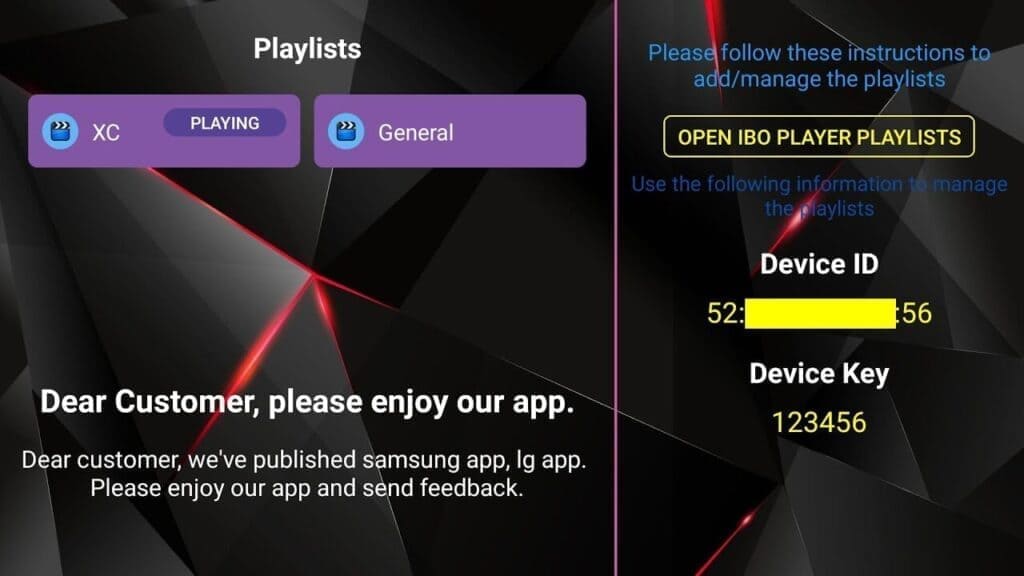
After installing and opening IBO, look for its playlist or settings screen. This reference version shows device identifiers on the right; TV app-store screens vary by model. Find Device ID and Device Key
Open the player settings or playlist screen. Locate the identifiers displayed by the app. These are not your TV account password.
IBO example interface. Use your own identifiers, not the sample key pictured. Send us the identifiers privately
Send the exact app name, TV model, Device ID and Device Key through Contact support or WhatsApp support. We can configure your playlist remotely. You do not need to log in to a management website yourself.
Send your own Device ID and Device Key privately, with your TV model and exact app name. Optional: manage the playlist yourself
Only if you prefer self-setup, open the exact management address displayed inside your installed app. Similar IBO names can belong to different publishers. Enter its Device ID and Device Key.
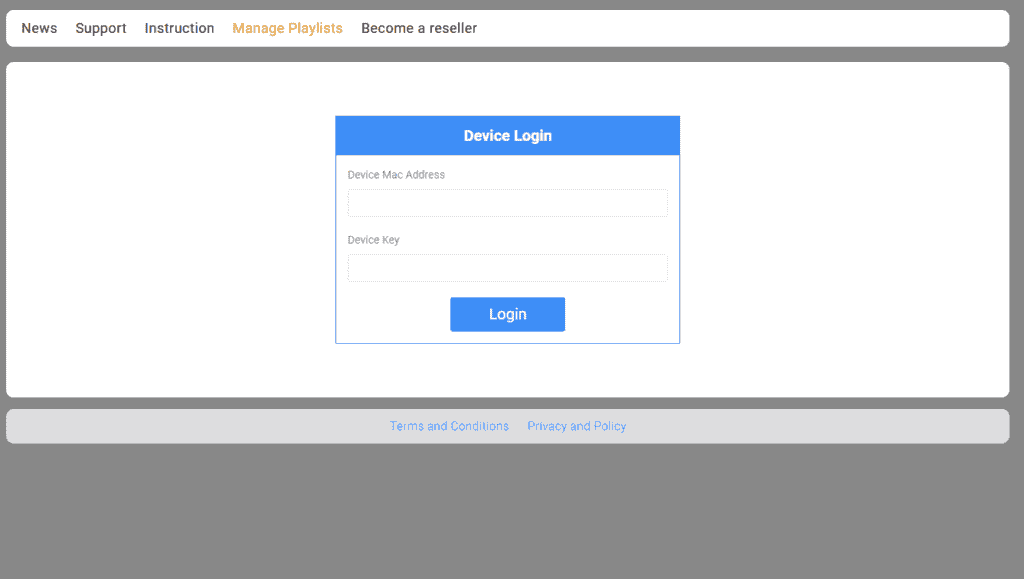
Example management screen. Use only the address belonging to your installed app. Add your subscription playlist
Choose Add XC Playlist. Enter USA IPTV Hub as the playlist name, then your supplied username, password and server address in Host. Save. Enter an EPG address only if we provided one. Skip this step when our team is setting it up for you.
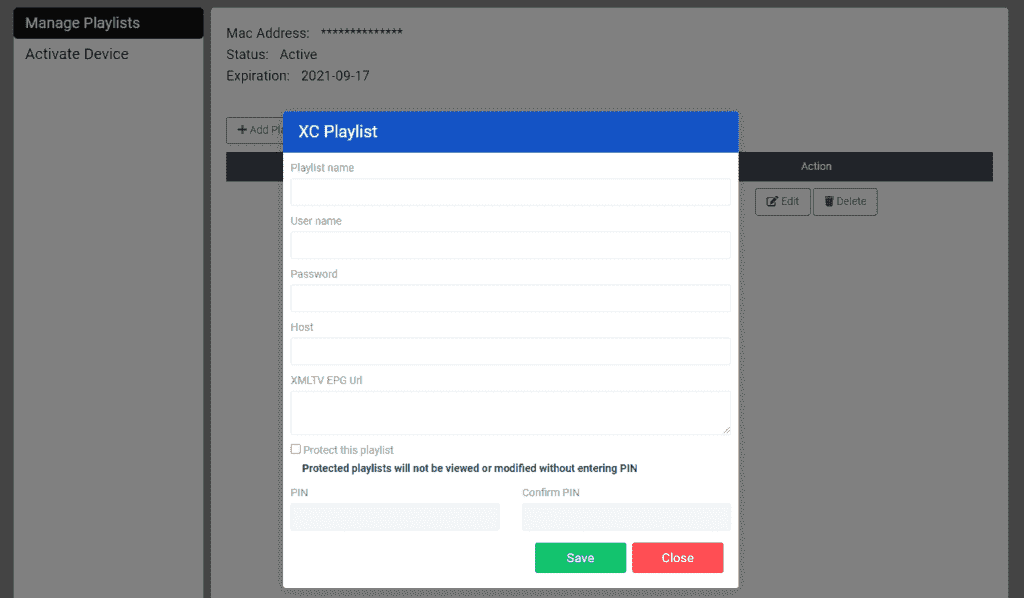
Example form. All subscription details must come from USA IPTV Hub. Reload on the TV
After saving, or after our team confirms activation, reopen the app or select Refresh / Reload. Select your playlist and test a channel. Keep any error message for support.
After reopening or reloading the app, select your saved playlist on the left. Example names may differ from yours.


Smarters: sign in on a supported TV
These reference screenshots show an older Smarters interface. Current app menus and supported TV models can differ.
Check your TV app store
On supported Samsung TVs, search SMARTERS PRO and verify TECH SMARTERS PRIVATE LIMITED as the developer. Install and open it. The publisher currently lists LG support as coming soon; LG users should use an available IBO or HotPlayer app instead.

Legacy Smarters branding from the reference guide; current branding may differ. Choose the login method
For versions with this menu, select Login with Xtream Codes API. If your current version presents a different playlist format, ask our team for the matching details.
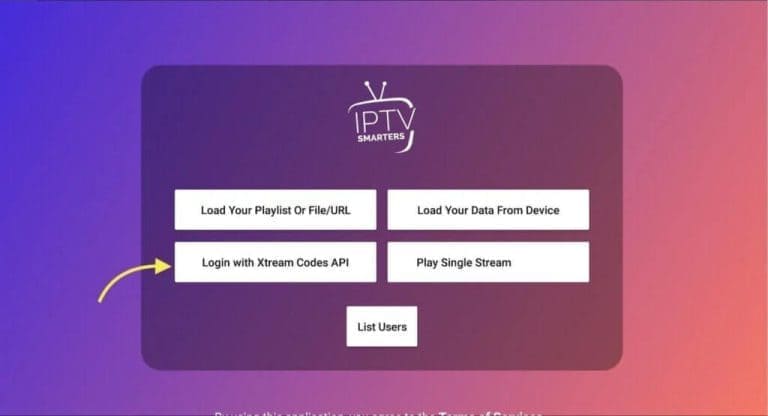
Reference interface; use the matching option in your installed version. Enter your USA IPTV Hub details
Use USA IPTV Hub for the display name. Enter the username, password and full server URL sent by our team, then select ADD USER. Do not copy the account or server shown in the example.

The pictured account and server belong to the reference example, NOT USA IPTV Hub. Load and open your library
Wait for loading to finish. Choose Live TV, Movies or Series. Select a category and then a title or channel. Load the EPG when available.
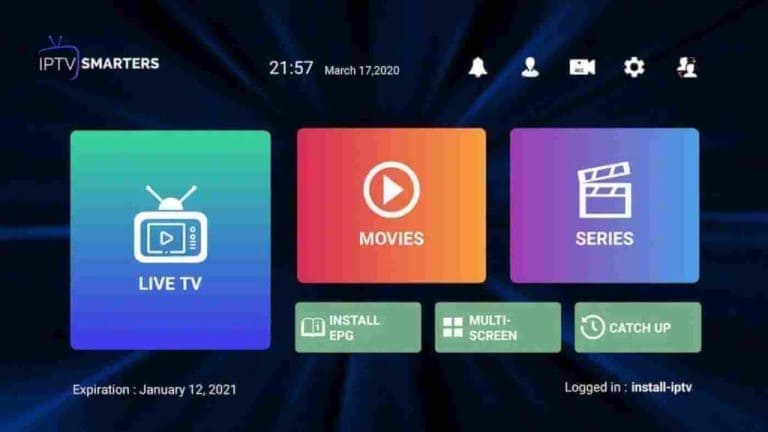
Older example interface; dates, account and content shown are not subscription promises.


HotPlayer: Samsung, LG and supported Hisense TVs
HotPlayer is an independent media player, not part of USA IPTV Hub. Check its current trial and activation terms before paying.
Install and open HotPlayer
Search for HotPlayer in your TV app store. Confirm it is the app published by STE DIGI VIBES. On Hisense, availability depends on the operating system and model. Open the app and locate its MAC address.
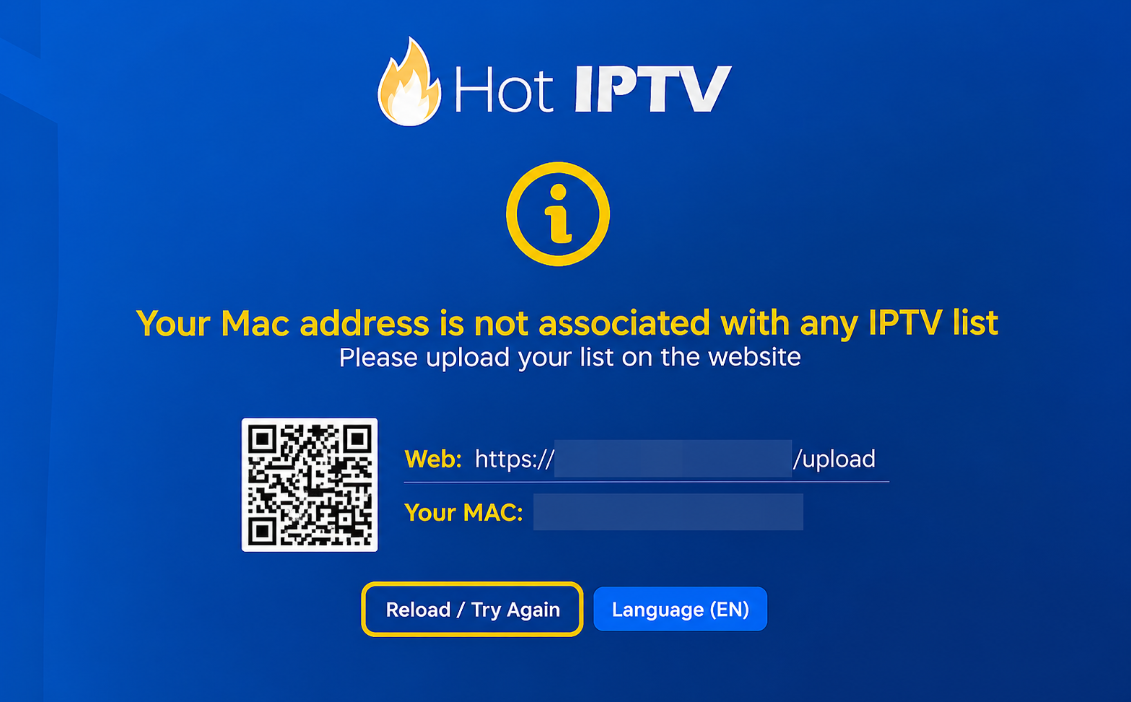
Reference welcome screen. Do not scan its sample QR code; use the details on your own TV. Set up remotely or open Upload List
You can send the app name and displayed identifiers privately through Contact support or WhatsApp support for setup. For self-setup, open HotPlayer Upload List, enter your app MAC address and choose Next.
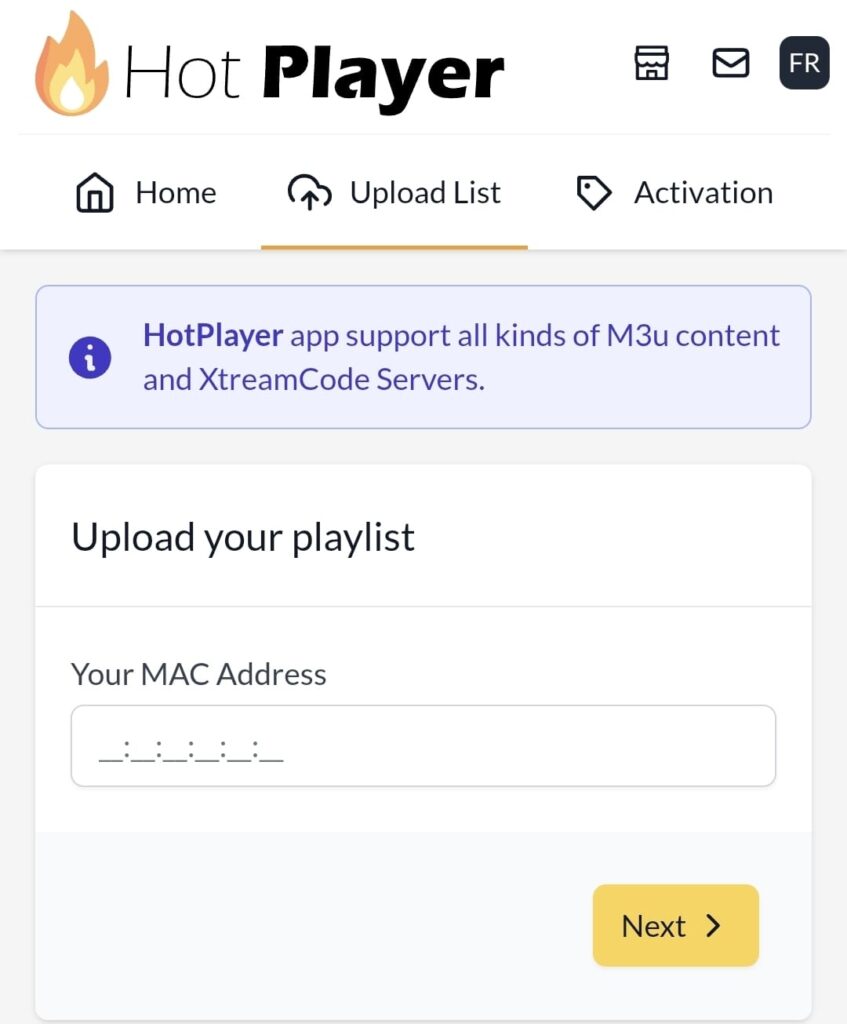
Self-setup example. Enter the MAC shown in your own HotPlayer app. Add the M3U playlist
Choose Link as the source, paste the complete private M3U URL supplied by our team, enter USA IPTV Hub as the playlist name, then Save. Do not substitute a plain Xtream server address for an M3U URL.
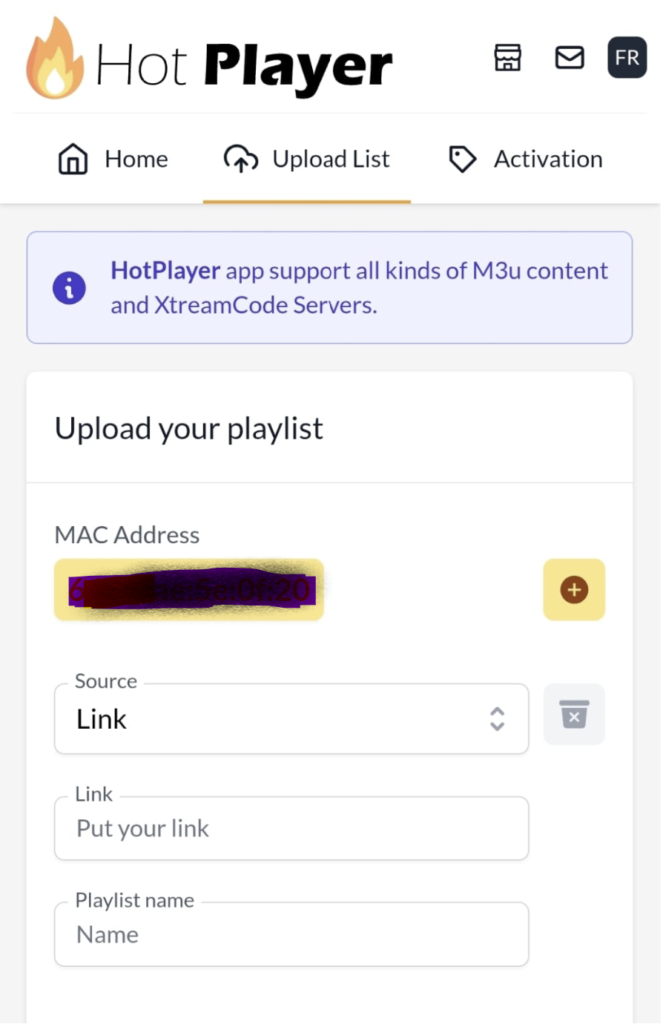
Reference form with redacted identifiers; never share your private playlist URL publicly. Reload and watch
Return to the TV and select Reload / Try Again, or restart HotPlayer. Open the saved playlist and test playback.
Return to your TV and choose Reload / Try Again. Use your own app screen; do not scan the example QR code.


USA IPTV Hub on Windows
Use the Windows version of Smarters Pro. The Nitro4K and TVURO Android APK files are not Windows installers.
Smarters Pro for Windows
The current Windows release is listed as beta. The download option is shown below; login and library photos are labelled older Smarters examples, not current Windows-beta captures.
Open the publisher download page
Visit the official Smarters Pro website and find Downloads.
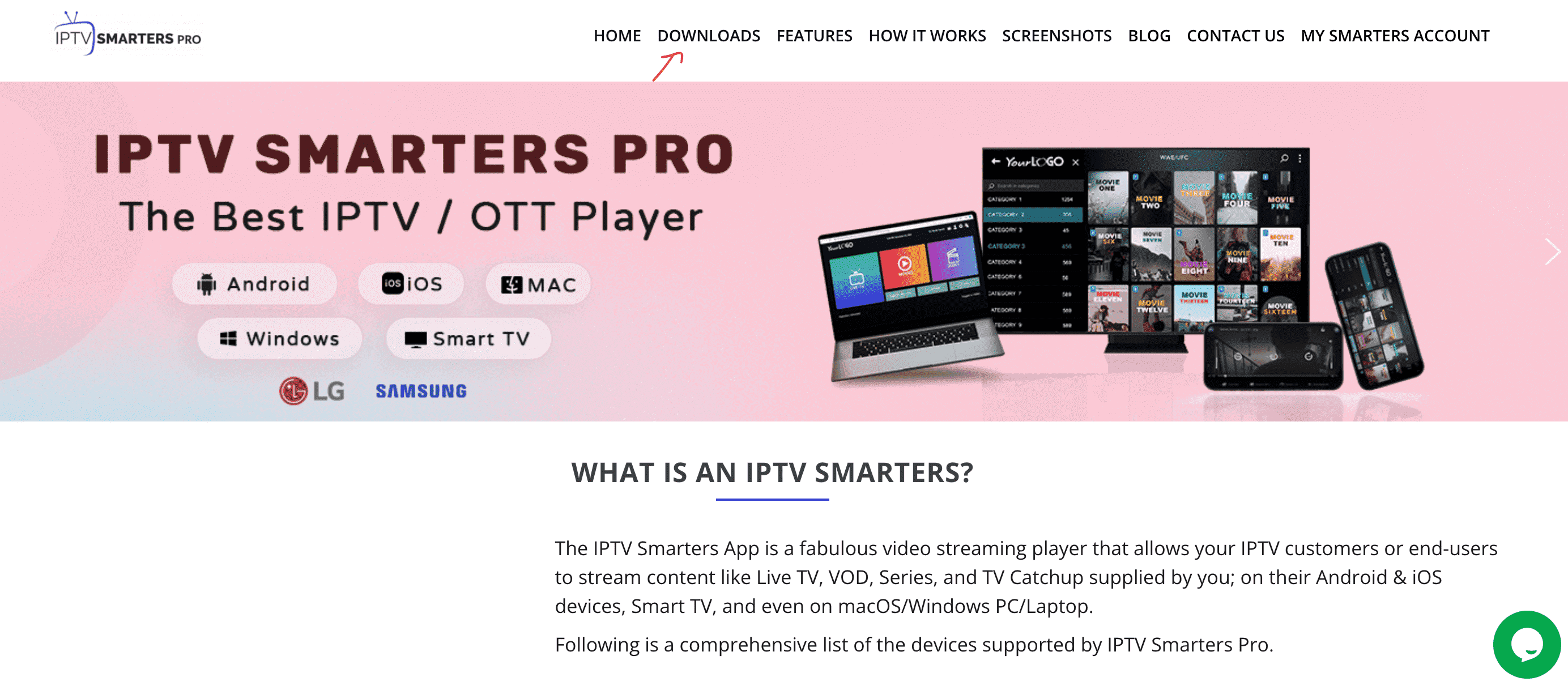
Historical reference screenshot. The current publisher site has a different layout; use the labelled official link above. Download, install and open the Windows app
Select the Windows download, not the Android APK. Check the system requirements and beta notice on the current page.

Choose the Windows download, then open the downloaded .exe and follow its installer. The installer may differ by version; do not disable Windows protection. Open the downloaded .exe and follow the installer. Verify its source and publisher. Stop if an unexpected security warning appears; do not disable Windows protection.
Add your subscription
Open the account or playlist screen. If Xtream Codes is offered, enter your supplied server URL, username and password, with USA IPTV Hub as the name. If another format is requested, contact our team with a screenshot of the blank form.
Legacy Smarters form example, not a capture of the current Windows beta. Use your own credentials when this login method is offered; for M3U or JSON, ask support for the matching format. Test playback
Finish loading, open the library and choose a channel or title. Report login or playback errors privately without exposing your password.
Library example from the older Smarters interface. Open a category and test playback; Windows beta layout may differ.


MyIPTV Player for Windows
Screenshots show the reference version of MyIPTV Player. Names and placement may vary in newer releases.
Install MyIPTV Player
Open the MyIPTV Player Microsoft Store listing. Check device compatibility, install and launch it. Ask our team for an M3U playlist URL.
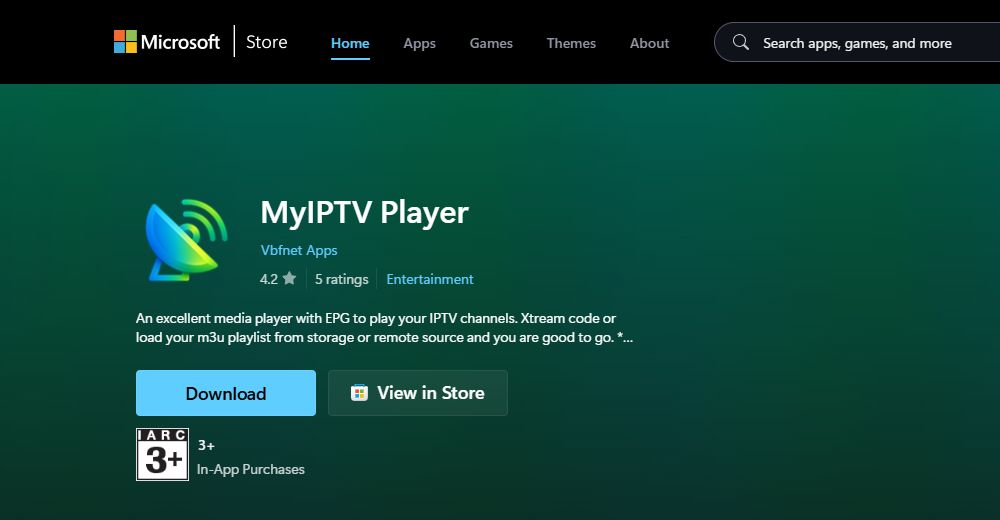
Check MyIPTV Player by Vbfnet Apps, then choose Download or View in Store. In Microsoft Store, complete installation and open the app. Open playlist settings
Select Settings, then Add new playlist and EPG source.
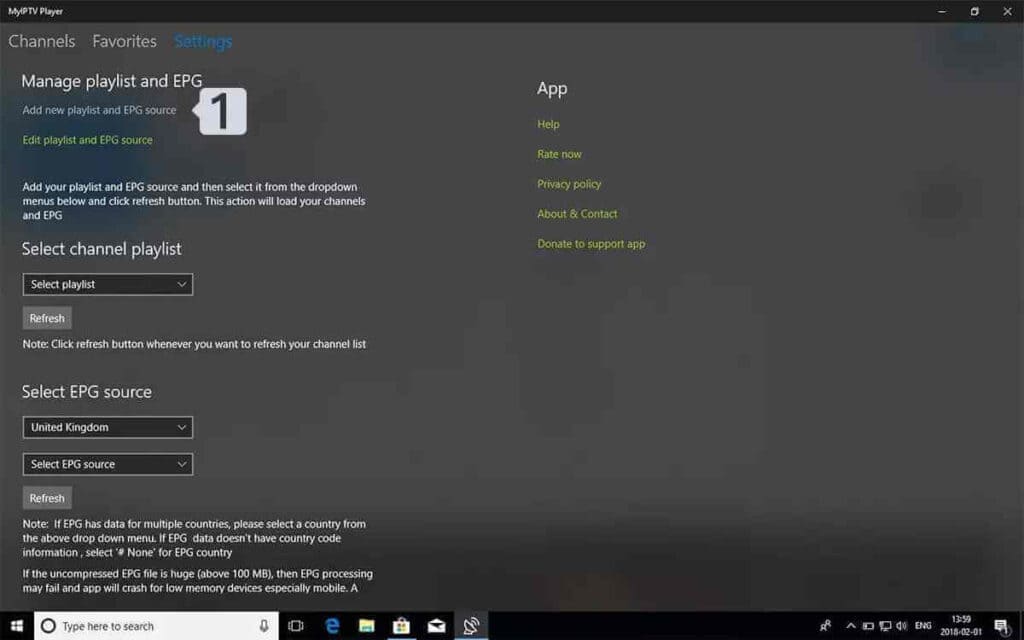
The numbered marker identifies the playlist setup entry. Add the remote playlist
Under Remote channel list, name the list USA IPTV Hub and paste your complete M3U URL. Choose Add remote list. For guide data, enter the EPG URL supplied by our team under Program guide and add that source.
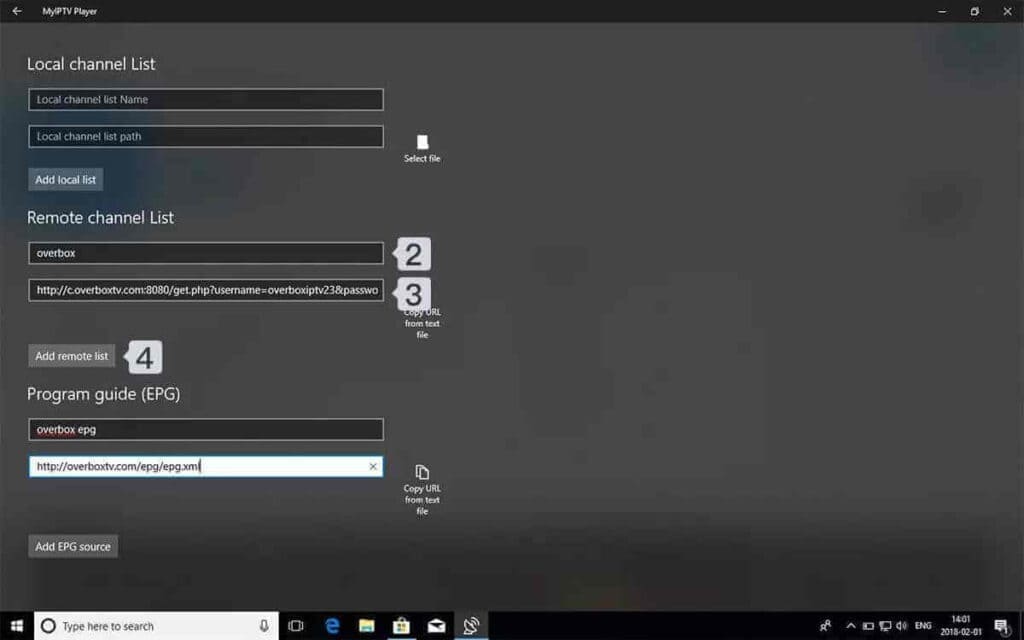
Old reference values are not USA IPTV Hub credentials. Use only your own supplied M3U and EPG URLs. Select and refresh your list
Return to Settings. Under Select channel playlist, choose your saved USA IPTV Hub list and Refresh. Select your EPG source and refresh it too if one was added.
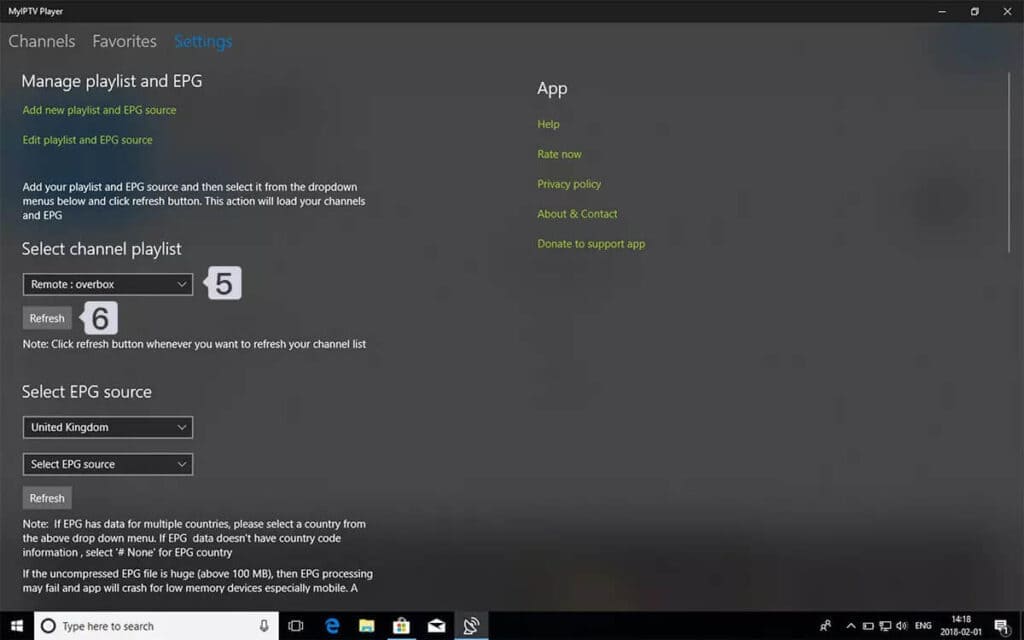
The saved list name will be USA IPTV Hub when you use that name. Choose a channel
Open Channels. Pick a group from the menu, then select the channel you want to play. If the list stays empty, check the full M3U URL and contact support.
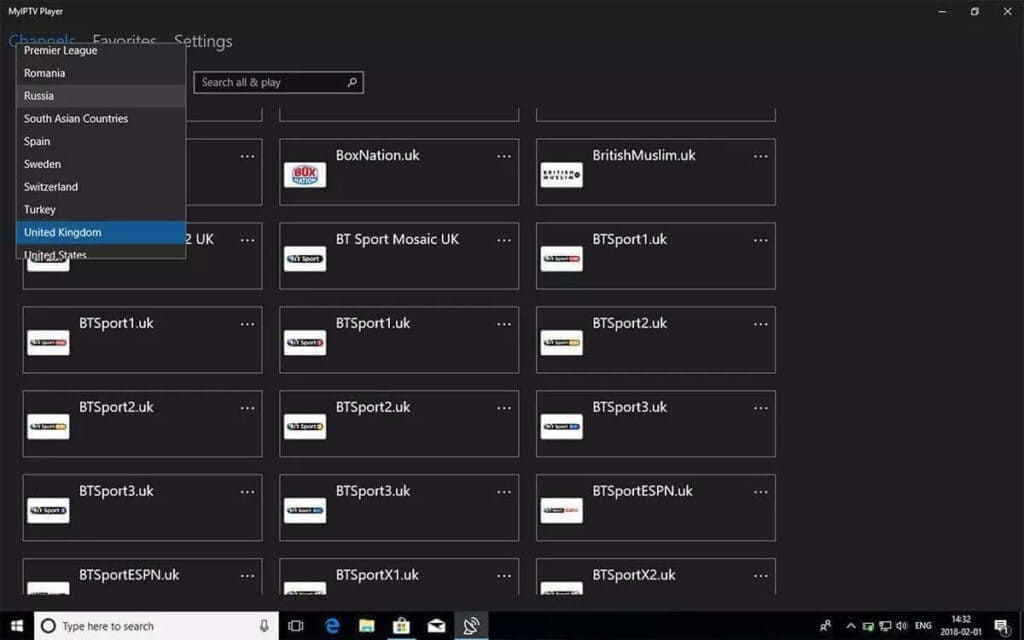
Older example library, not a statement of current USA IPTV Hub channel availability.


USA IPTV Hub on MAG Box
These steps are for supported Linux-based MAG boxes. Android-based MAG models need app instructions instead.
MAG portal setup
For supported Linux-based MAG boxes. Android-based MAG models use Android apps instead. The five screenshots show the complete menu sequence.
Activate your MAG first
Find your model and MAC in Settings > System settings > Device info. Send your MAG model and MAC address privately to our team. Wait for activation and your assigned portal URL. Connect the box to the internet before continuing.
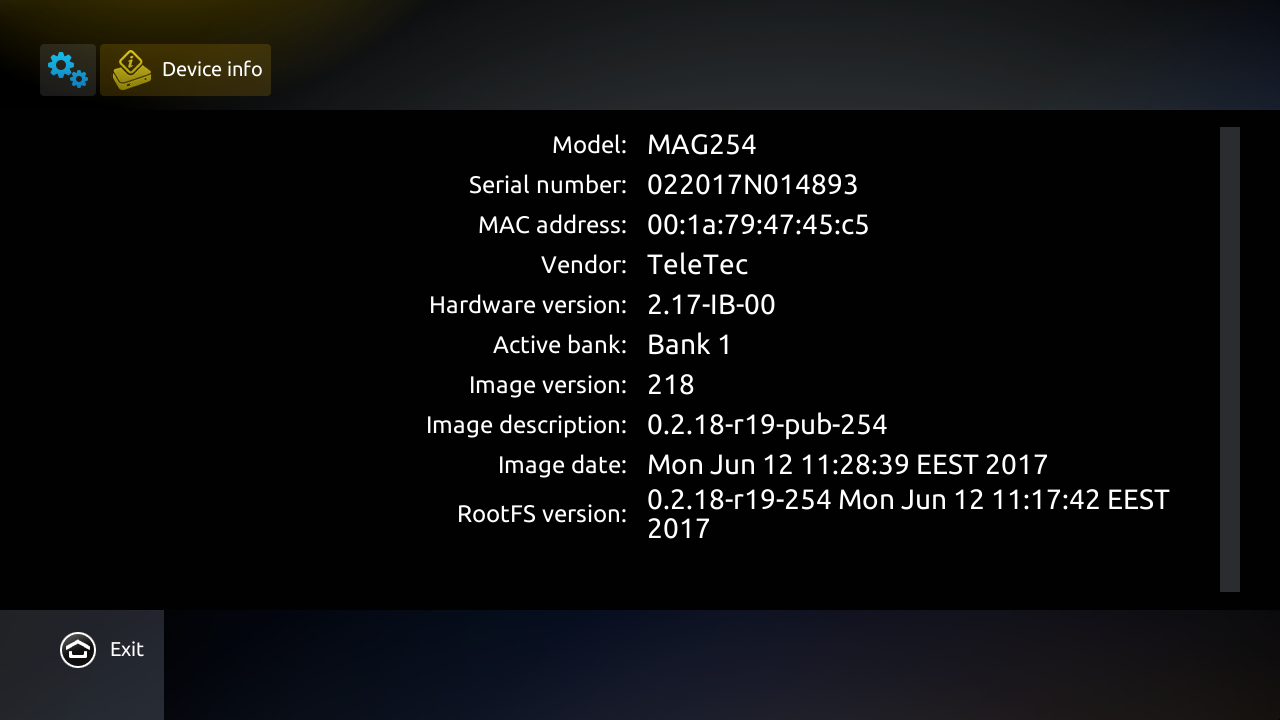
Example Device info screen. Send your own Model and MAC address, not these example values, privately to support. Open Settings
From the embedded portal home screen, choose Settings using your remote. The SET / SETUP button may also open settings.
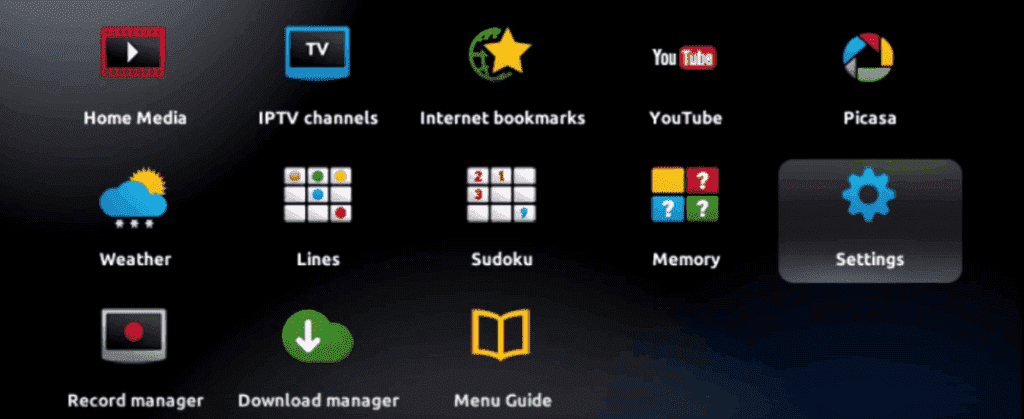
Select the Settings tile. Open System settings
Choose System settings.
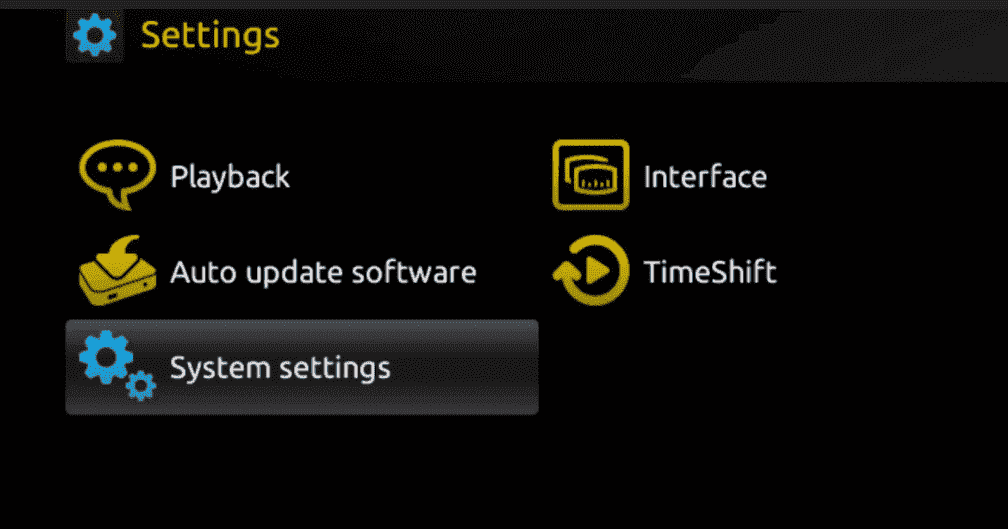
Open System settings, not Playback or Interface. Choose Servers
Select Servers from the system menu.
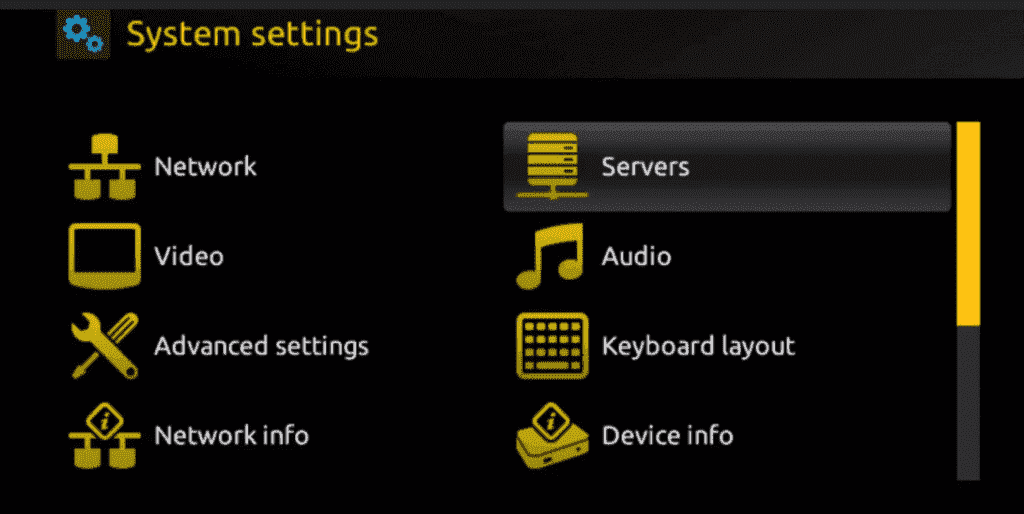
Select Servers. Menu placement varies by firmware. Open Portals
Choose Portals. If this menu is unavailable, contact support with the model and firmware version.
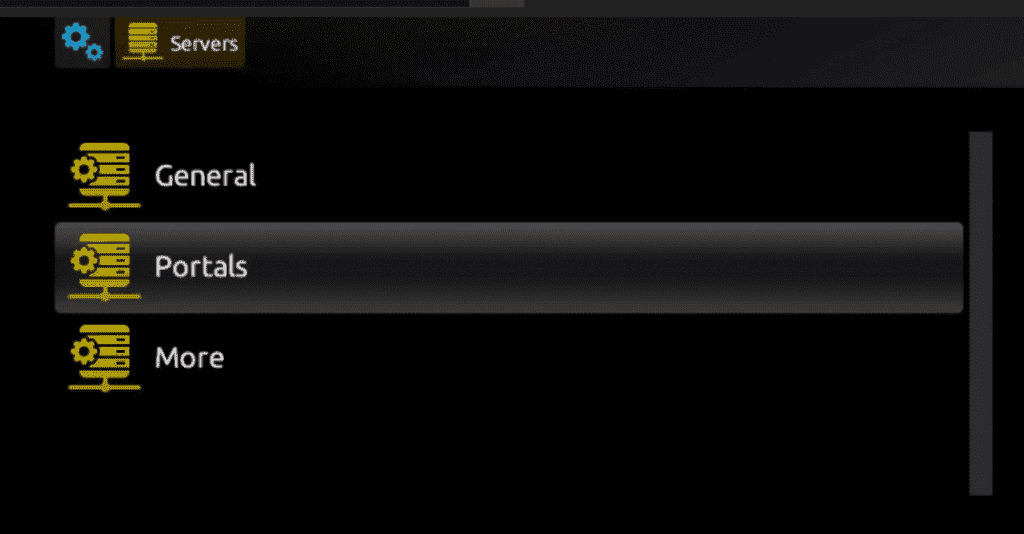
Open the Portals entry. Enter your assigned portal
Set Portal 1 name to USA IPTV Hub. In Portal 1 URL, enter the exact address our team sent you, including its path and port. Keep unrelated settings unchanged.
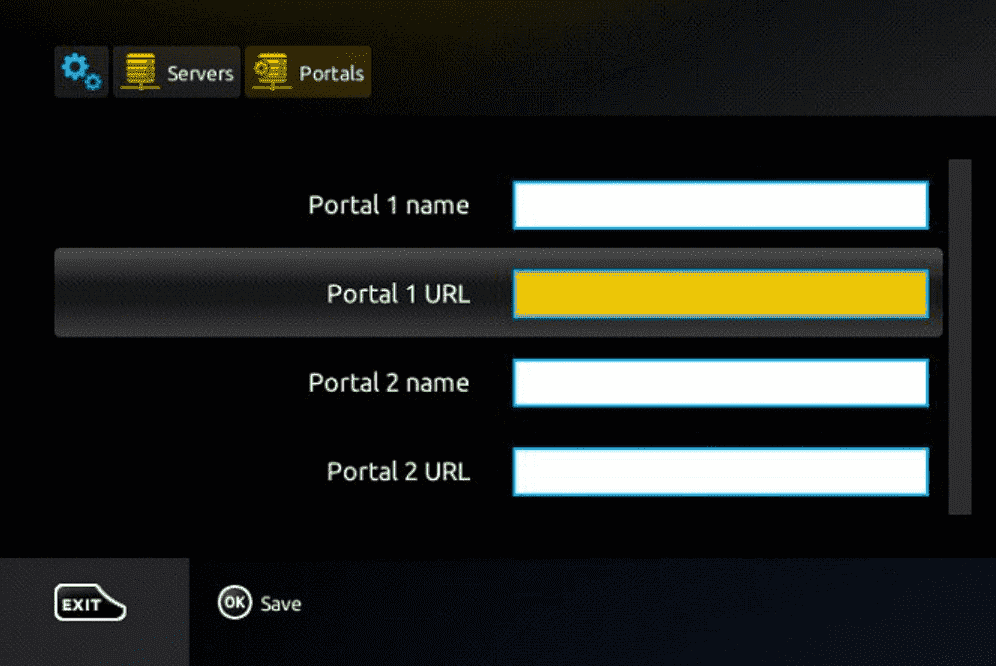
Use your assigned USA IPTV Hub portal. Do not enter the website homepage as the portal URL. Save and reload
Press OK to save, then Exit. Return to System settings and choose Restart Portal, or restart the box if directed by its firmware. Wait for loading and test a channel. Do not factory-reset the box to fix a login error.
Press OK to Save. Then leave this menu and restart the portal or box as described above; do not reset the device.


TiviMate for your TV
An alternative player for compatible Android TV, Google TV and Fire OS streaming devices.
Official Downloader code: 272483
For Android-based TVs and streaming boxes. Not a native Samsung Tizen, LG webOS or Apple app. A compatible external streaming device is needed for those TVs. Fire TV instructions apply to compatible Fire OS models, not Vega OS.
Official download for Android TV / Google TV
On your TV, open Google Play and search for TiviMate IPTV Player. Check that the listing is the app linked below, select Install, then Open.

Install with Downloader
Open Downloader
Install Downloader by AFTVnews from your device's app store, then open it. Use the address / short-code field shown below.
The same Downloader app is used for this installation; the TiviMate code is different from the Nitro4K and TVURO codes. Allow installation from Downloader
If your device asks, open its installation settings and allow Downloader to install apps. On compatible Fire OS devices, this is under My Fire TV > Developer options > Install unknown apps. Android TV settings vary by model. ADB debugging is not required; do not disable other security protections.
Fire TV example. Enable installation for Downloader only; Android TV may use a different settings layout. Enter 272483 and install TiviMate
Return to Downloader, enter 272483 in the address field and select Go. Alternatively, type https://tivimate.com/apk. Wait for the download, confirm the installer names TiviMate, then select Install and Open. Stop if an unexpected app or security warning appears.
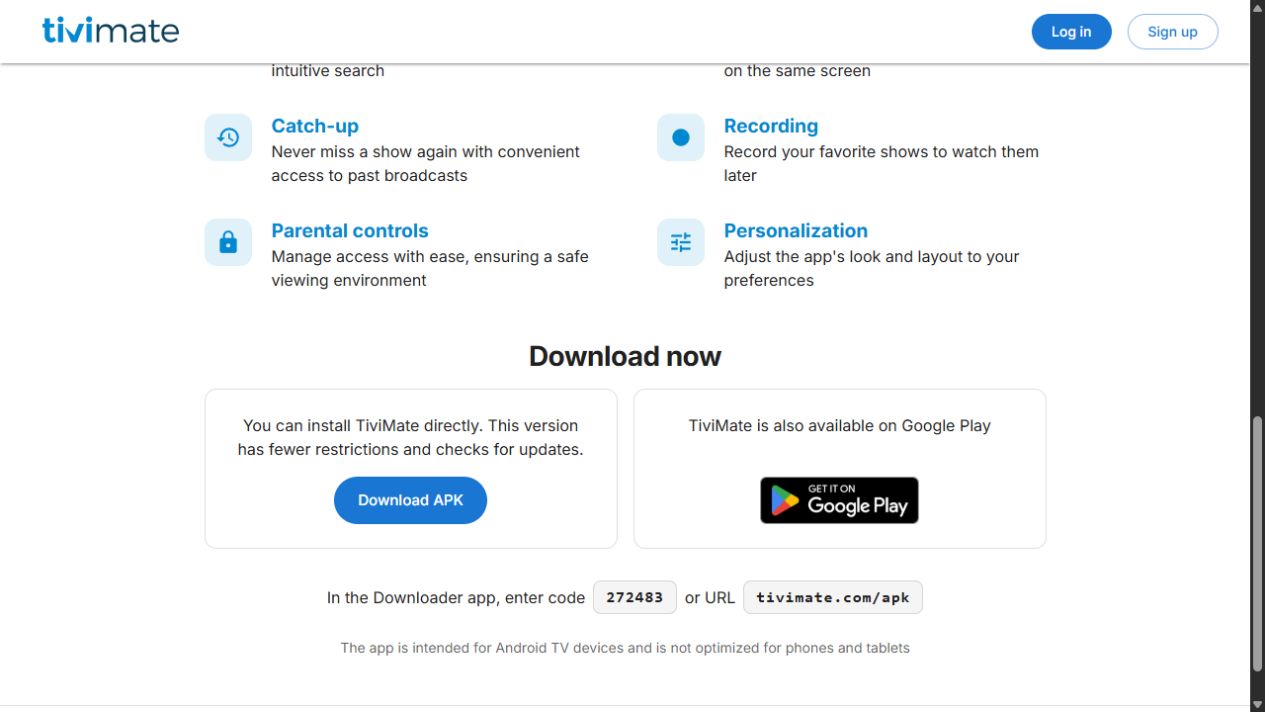
These are the publisher's download details, not the Nitro4K or TVURO app codes. Add your subscription playlist
In TiviMate, choose Add playlist, then Xtream Codes when available. Enter the server URL, username and password supplied by our team. Continue through the prompts, name the playlist USA IPTV Hub and finish setup. If using M3U instead, request the correct playlist URL from support. Menu wording may vary by version.
Open a channel to test playback. Never send your Google or Amazon account password. For help, send our team your device model and a screenshot of the problem with subscription credentials hidden.
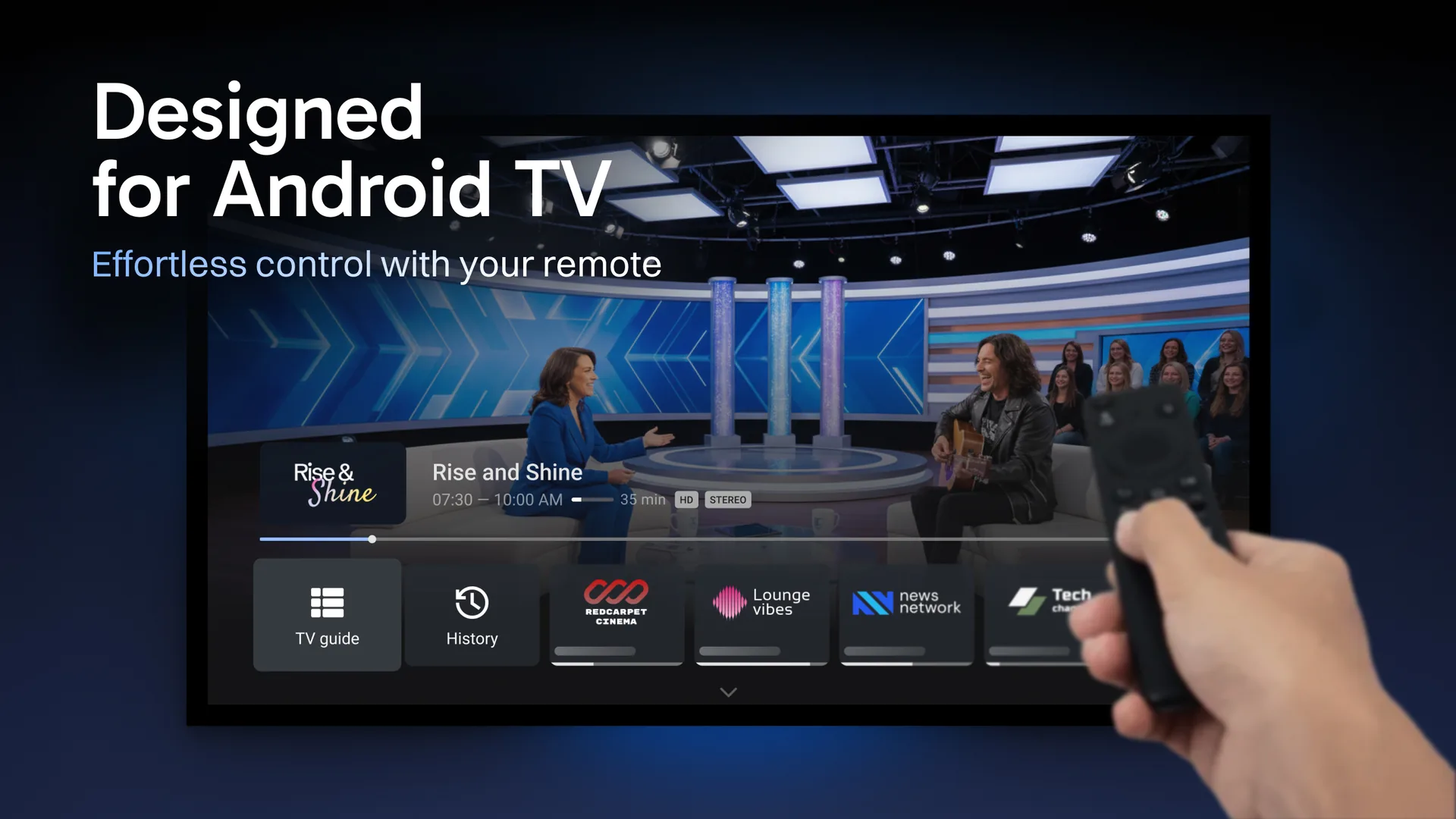
Illustrative player view, not the Add playlist form. Example channels shown are not a promise of subscription availability.
TiviMate is an independent player and does not include channels. Its Premium features, if chosen, are purchased separately from your USA IPTV Hub subscription. Installing the player does not activate a subscription.
