
Your Xiaomi box connects the television to apps, but it does not automatically supply a channel subscription. This USA IPTV Hub guide separates the three things you need: a compatible box, an appropriate player and the login details for that player.
Identify your Xiaomi TV Box or Mi Box
Read the model label or open the About screen in Settings. Record the model and software version; "Xiaomi box" alone is not enough to distinguish generations or a TV Stick from a TV Box. Menu names can vary after an update.
For example, Xiaomi identifies its TV Box S (3rd Gen) as a Google TV device. That does not mean every older Mi Box has the same menus, app availability or hardware. A 4K-capable box also does not make every stream 4K.
Choose between a store player and an assisted setup
- Prefer a store installation?
- Search your TV's app store for the player by name and check its publisher. TiviMate is one Android TV option to discuss with us. Check the listing on your actual box before paying for player features; availability can differ by device and region.
- Prefer help with a supplied player?
- Ask USA IPTV Hub about Nitro4K or TVURO and confirm which one fits your order. These are player names. A USA IPTV Hub subscription is separate from downloading either app.
Installing several players at once makes a login problem harder to trace. Begin with one player, get it working, and change the layout later if needed. Our player versus subscription guide explains the distinction.
Install the player on Google TV
- Connect the box to the intended home network and open the Apps area or search for the app by name.
- Open the store listing. Check the developer, device compatibility and whether there is a separate app purchase.
- Select Install if the compatible version is offered, then open the app. Follow Google's app installation instructions if your menu looks different.
For a support-confirmed download outside the store, follow the Android TV tutorial and Downloader guide. Verify the actual app name before installation. Keep Play Protect enabled and do not bypass a security warning for an unknown package.

Add the right login details
On the Nitro4K screen shown below, use the username and password supplied for that player. On TVURO, use the details confirmed for its access screen. Do not type a Downloader code into either form.
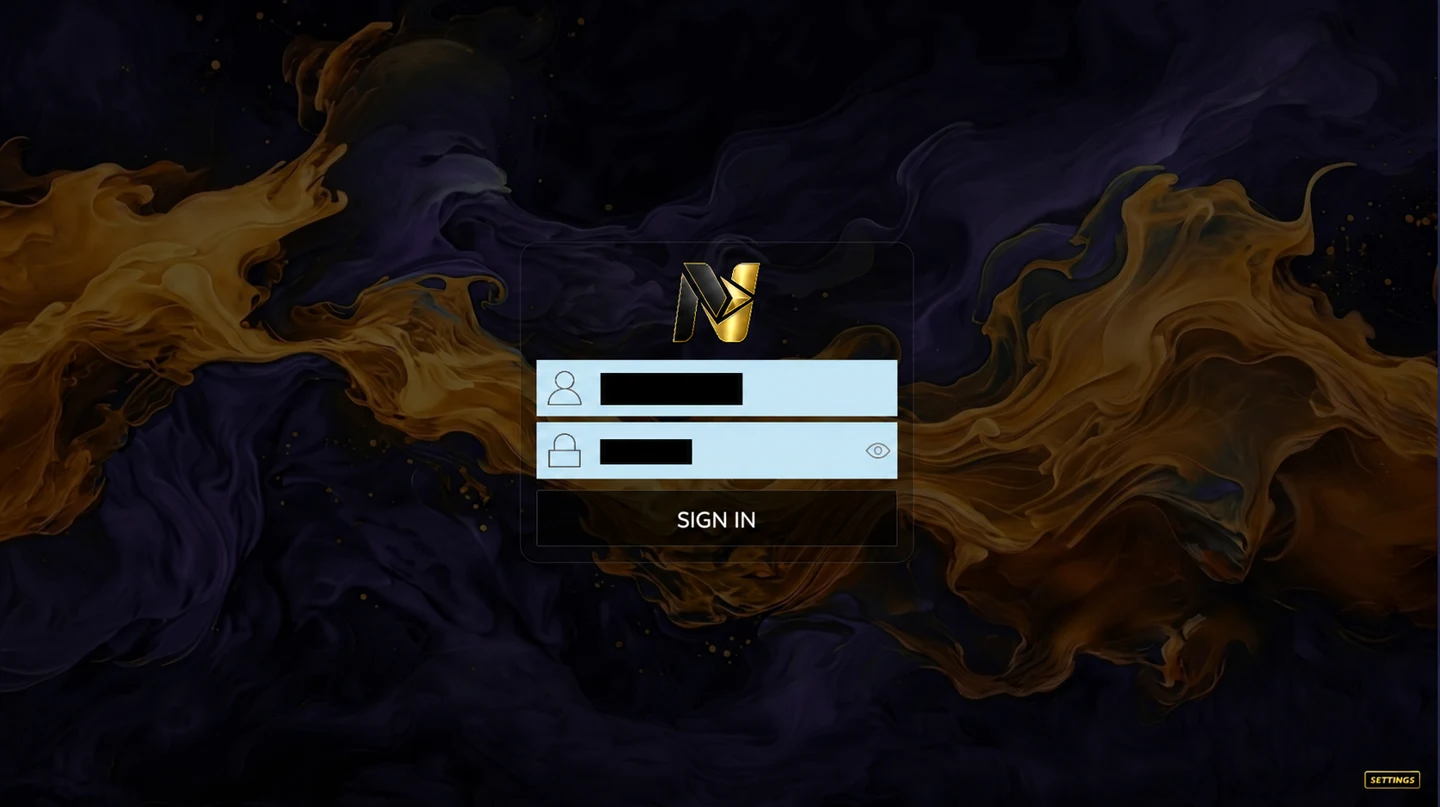
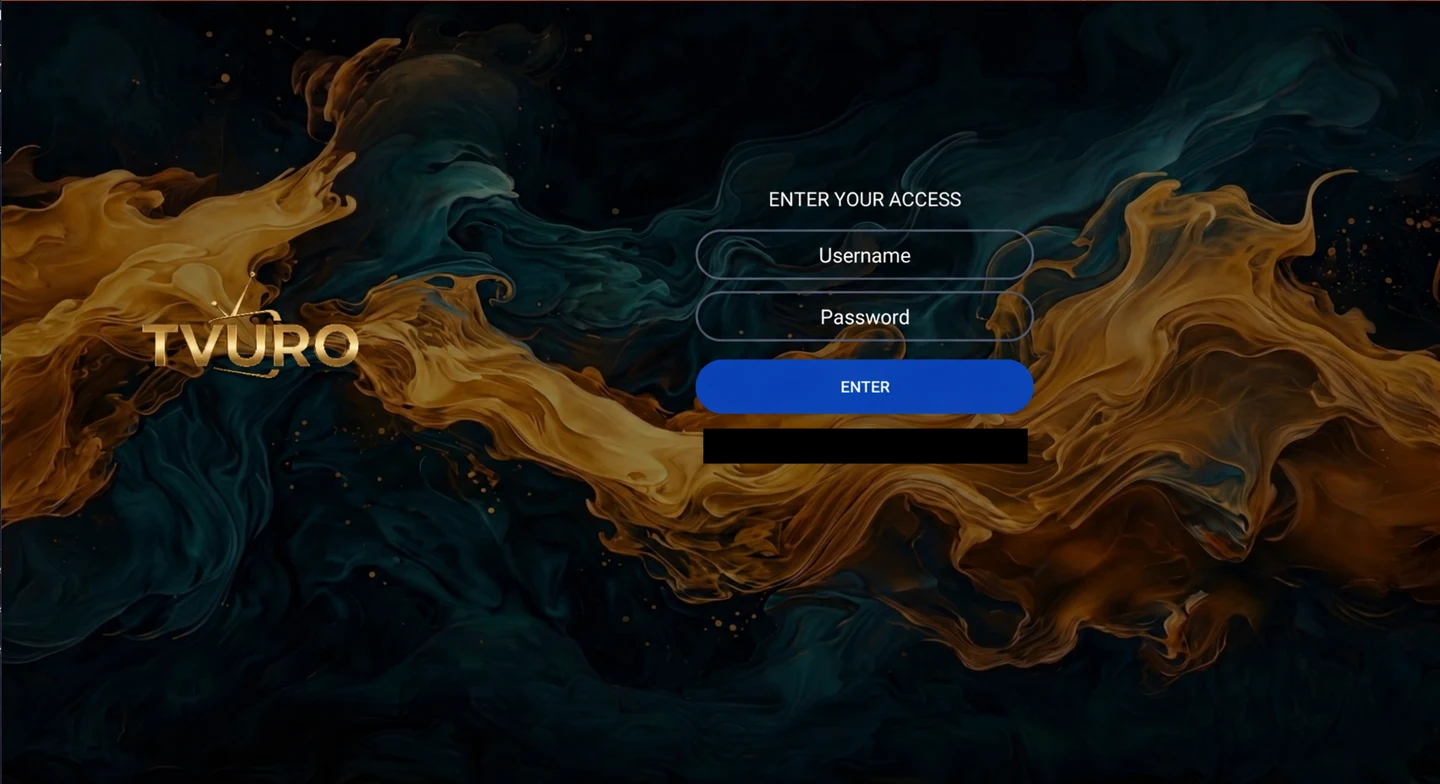
If TiviMate asks for Xtream Codes or an M3U playlist, request that supported format from us. A complete playlist URL can contain a password: treat it like a password, not like an ordinary website link. See the TiviMate setup walkthrough for its separate playlist route.
Check playback before changing more settings
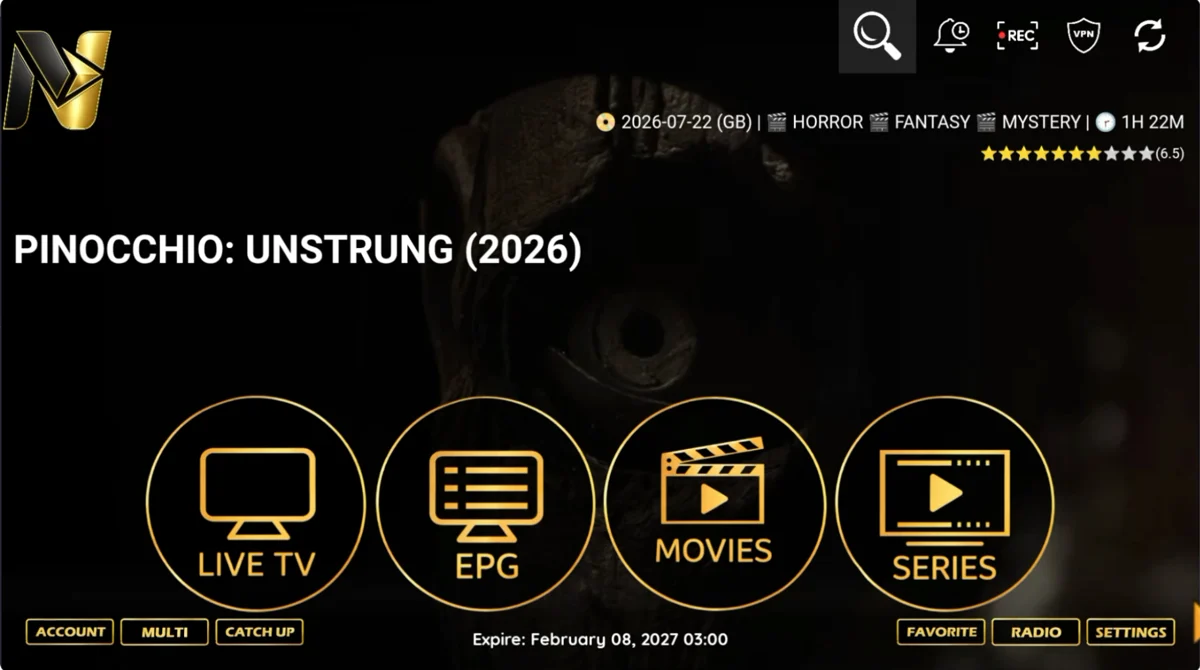
- The library loads: use the remote to open a category, then a stream you are entitled to access.
- The guide is usable: check a channel name and programme time; mention the time zone if listings look shifted.
- The connection is steady: test on the television, not only on a phone beside the router.
- The allowance fits: stop playback elsewhere while testing a one-device account.
If the app will not install, sign in or play
No compatible store listing: send the model and software version. Login rejected: check that the credentials match the player and ask support to confirm account status. Picture freezes: compare another channel and use our buffering troubleshooting steps.
For an app that feels slow even in menus, check official updates and restart the box. Xiaomi publishes app-update help for the TV Box S (2nd Gen). Do not clear app data or factory-reset the box as a first step: you may lose saved logins and settings.
Ready to choose service? Compare the subscription options and ordering checklist with your model and the number of people watching at once in mind.
 Ask about my setup